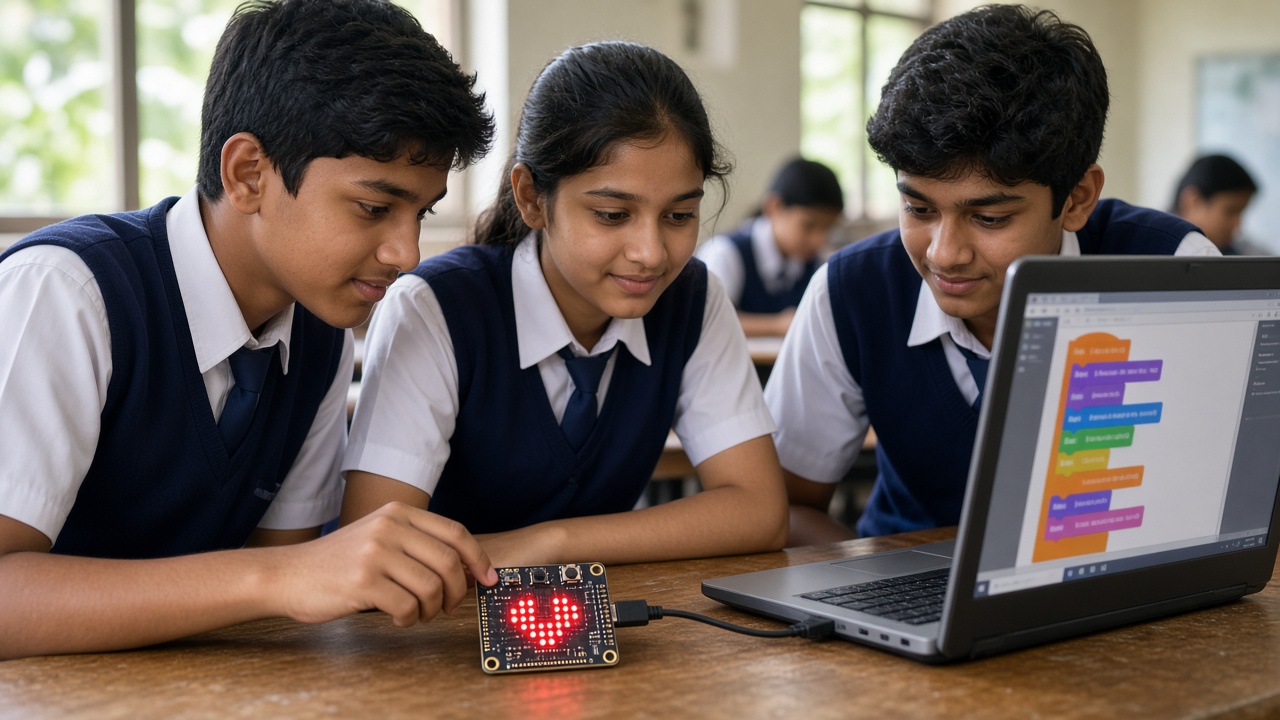
A pocket-sized board with lights, buttons and sensors built in: how students in Classes 4 to 10 can start coding and making with the micro:bit
A beginner-friendly guide to the BBC micro:bit for Indian school students, parents and teachers: what the board is and who makes it, its built-in LED display, buttons and sensors, radio and Bluetooth, the extra V2 features, how to program it with MakeCode blocks, JavaScript or Python using free simulators, starter project ideas, how it compares with Arduino and Raspberry Pi, how schools can use it in classes, Atal Tinkering Labs and innovation clubs, and tips for parents.
Introduction
What if a tiny computer could fit in your palm and turn your ideas into blinking lights, games and gadgets? That is the BBC micro:bit. It is one of the friendliest ways for school students to start coding and electronics, because it works almost straight out of the box. This guide explains what the micro:bit is, what it can do and how to begin, for students in Classes 4 to 10, their parents and teachers in India.
What is the BBC micro:bit?
The BBC micro:bit is a pocket-sized, programmable circuit board made for learning. It began as a BBC project in the UK and is now looked after by the Micro:bit Educational Foundation, a non-profit organisation. You write a program on a computer or tablet, send it to the board, and the micro:bit follows your instructions. Since sensors and a display are already built in, students can see results within minutes, without wiring anything.
What is built into the board?
The board packs a surprising number of features into a small space:
LED display: a grid of 25 tiny red lights (5 by 5) that can show letters, numbers, icons and simple animations. Buttons A and B: two push buttons you can program to do anything. Accelerometer: a motion sensor that detects tilting, shaking and movement. Compass: senses direction using the Earth's magnetic field. Temperature and light sensing: the board can give an approximate temperature reading and sense how bright it is around it. Radio and Bluetooth: micro:bits can send messages to each other wirelessly and connect to phones or tablets.
The newer micro:bit V2 adds a built-in microphone, a small speaker and a touch-sensitive logo on the front. Gold pins along the bottom edge let students connect crocodile clips, LEDs, motors and other parts as their skills grow.
How do students program it?
There are three common ways to code a micro:bit, and all of them are free and run in a web browser:
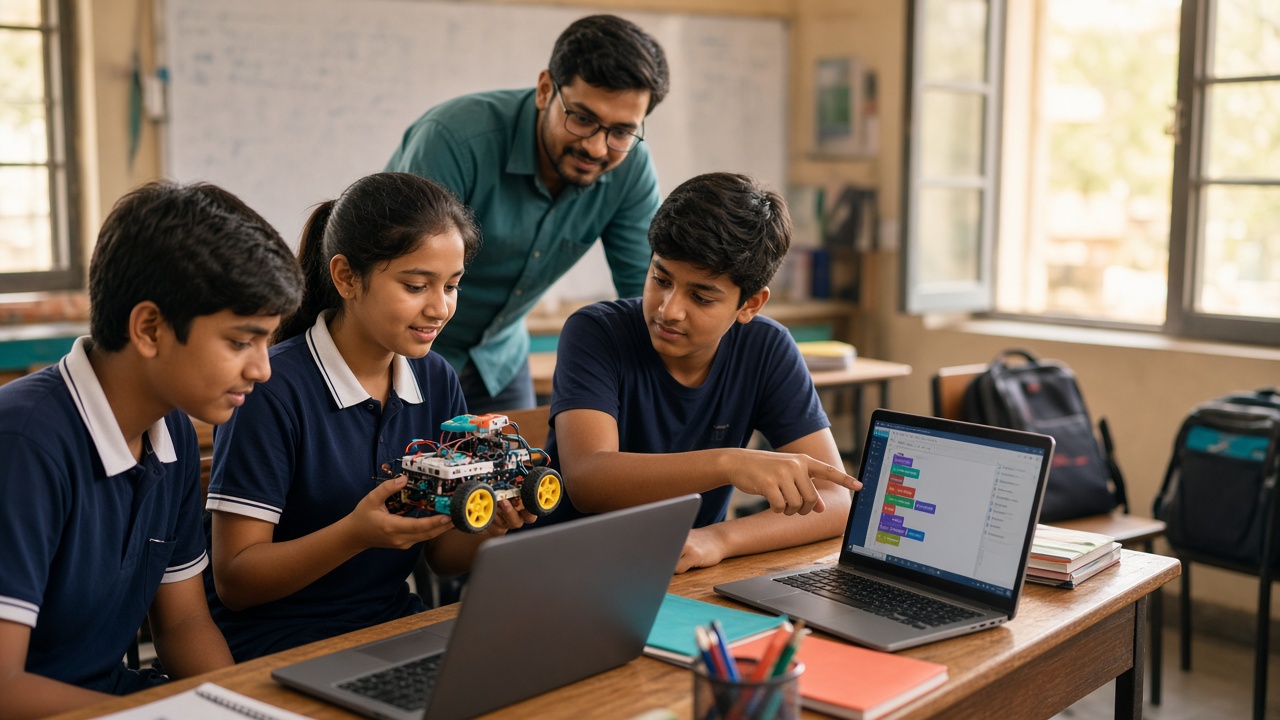
MakeCode blocks: Microsoft MakeCode lets students drag and drop colourful blocks, much like Scratch. It is ideal for younger beginners. JavaScript: the same MakeCode editor can switch from blocks to typed JavaScript code, so students can see how their blocks look as text. Python: the official micro:bit Python editor lets older students write real Python code, a popular language used in many industries.
The best part is the simulator. Both editors show an on-screen micro:bit, so students can test their programs before they own a board. When they do have one, they connect it with a USB cable and copy the program across, and many browsers can send it directly. Unsure where to start? Our guide at sheepbyte.com/blog/scratch-vs-python-for-kids-which-first can help.
Beginner project ideas
Here are some starter projects that use only the board itself:
Name badge: scroll your name across the LED display. Digital dice: shake the micro:bit to show a random number from 1 to 6. Step counter: use the accelerometer to count steps as you walk. Room thermometer: show the temperature at the press of a button. Rock, paper, scissors: shake to get a random choice and play with a friend. Secret messages: send short radio messages between two micro:bits in the classroom. Night light: switch on LEDs automatically when the room gets dark.
Once these feel easy, students can add motors, buzzers and external sensors to build simple robots and science exhibition models. Find more ideas at sheepbyte.com/blog/beginner-robotics-project-ideas-for-students.
micro:bit vs Arduino vs Raspberry Pi
All three are popular with students, but they suit different stages:
micro:bit: the easiest start, with sensors and a display built in and block-based coding. Great for Classes 4 to 8 and for first-time coders of any age. Arduino: a microcontroller board that usually needs extra parts and wiring, and is often programmed in a language based on C and C++. A good next step for students ready for electronics and robotics. Raspberry Pi: a small, complete computer that runs an operating system, useful for bigger projects such as cameras, websites and AI experiments.
Many students begin with the micro:bit and move on to the others later. Read more at sheepbyte.com/blog/python-vs-arduino-beginner-student and sheepbyte.com/blog/raspberry-pi-for-school-students-beginners-guide-india.
How schools can use the micro:bit
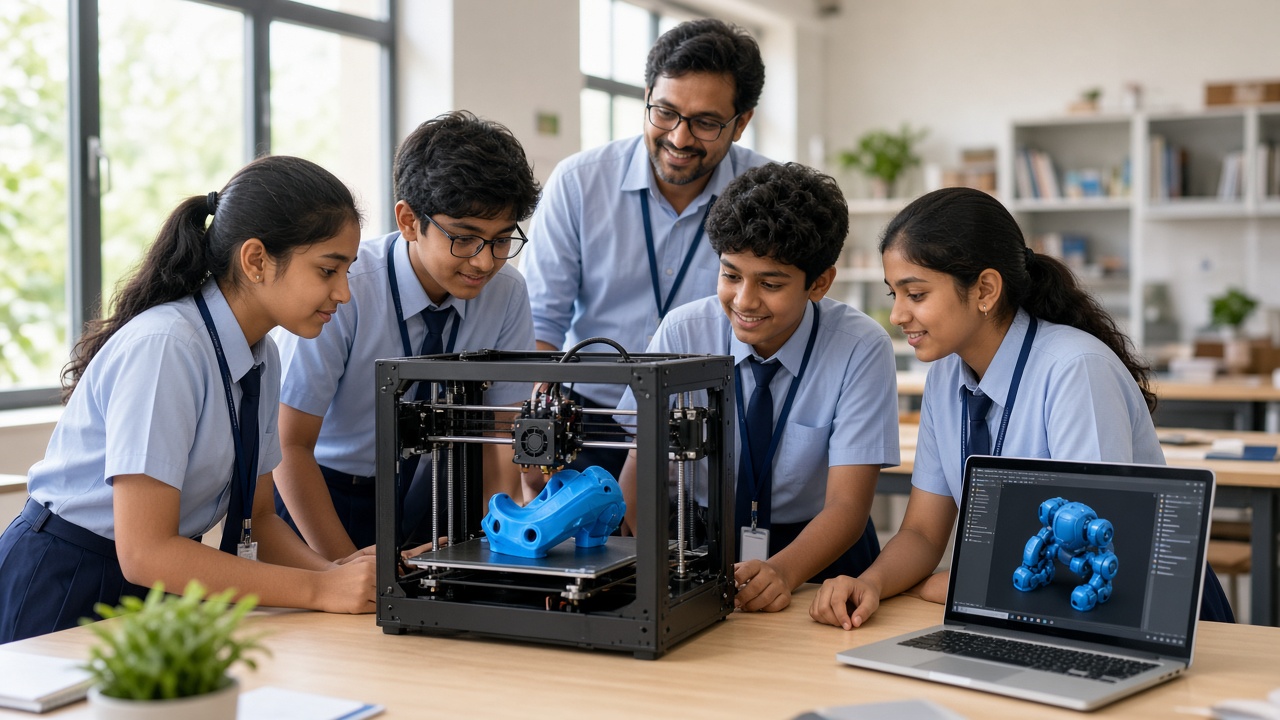
Because it is simple to set up and reasonably durable, the micro:bit can work well in many school settings. In regular classes, teachers can link it to subjects: measuring temperature in science, collecting data in maths or making interactive stories in language lessons. In an Atal Tinkering Lab, it can be a gentle entry point before students move to more complex kits. The equipment and activities in each lab can vary, so schools should check the latest official guidance from Atal Innovation Mission for their own lab. Our guide at sheepbyte.com/blog/what-is-atal-tinkering-lab-guide-indian-schools explains how these labs work.
In innovation clubs, small teams can build quick prototypes for real problems, such as a water-saving reminder or a classroom noise meter. Teachers without a technical background can also start confidently, because free lesson ideas and tutorials are available on the official micro:bit and MakeCode websites.
Tips for parents
You do not need to know coding to support your child. Start with the free online simulator to see if your child enjoys it before buying anything. If you do buy a board, choose a genuine micro:bit from a trusted seller, and check whether it is the V2. Sit with your child for the first project, ask them to explain what their code does, and celebrate small wins. Keep sessions short and fun, and encourage them to share their projects with family or at school.
Frequently asked questions
Q: What age is the micro:bit suitable for? A: Many children start with MakeCode blocks at around 8 to 10 years old, and older students can continue with Python. Interest matters more than age.
Q: Do I need a micro:bit to start learning? A: No. The free browser simulators let students write and test code first, and a board can be added later.
Learn micro:bit, robotics and AI with SheepByte
SheepByte is an AI and robotics education company based in Udaipur, Rajasthan. Our programmes include AI Learning, Coding Bootcamp, Drone Technology, Innovation Club, Robotics Lab and STEM Integration, where students learn by building real projects. We also help schools set up robotics labs and run workshops in Jaipur, Delhi and online.
To bring hands-on coding and robotics to your school or child, write to support@sheepbyte.com or visit sheepbyte.com.